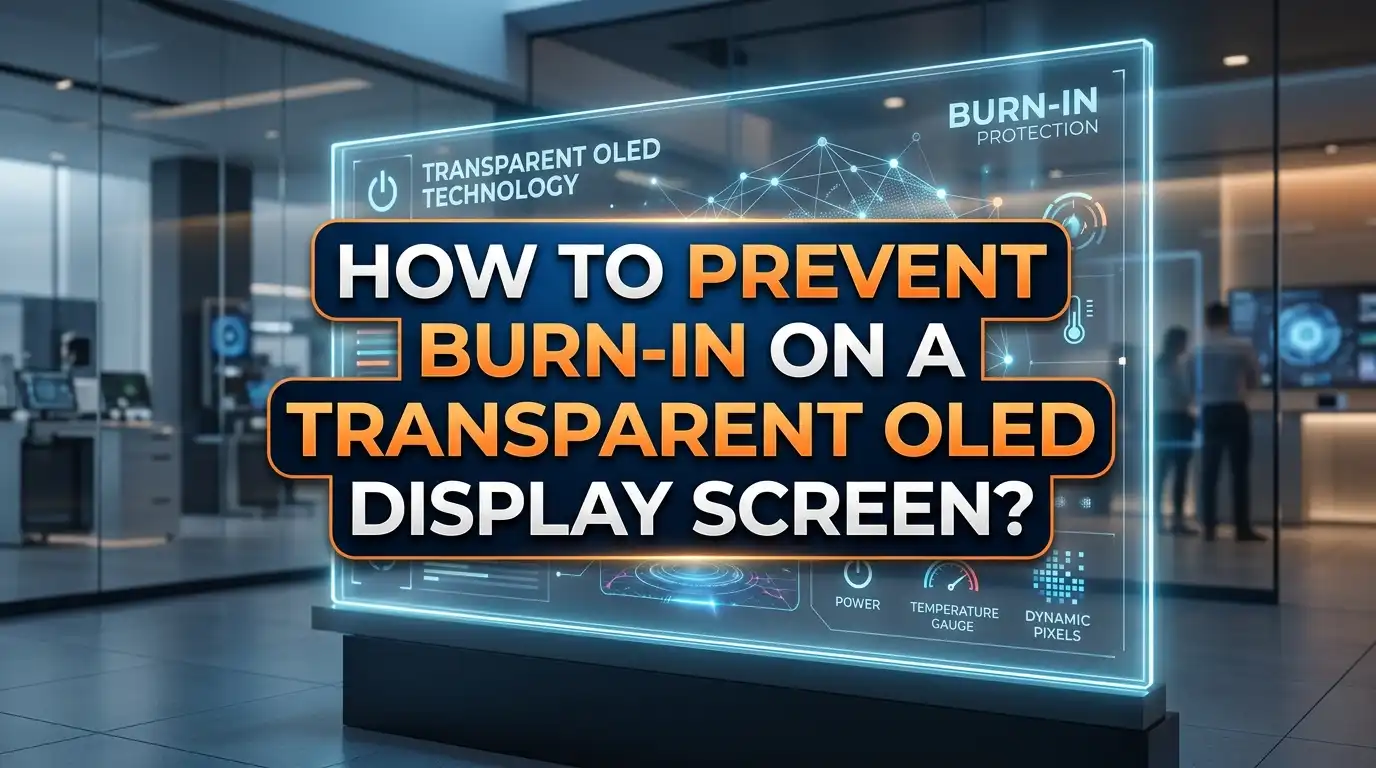
How to Prevent Burn In on a Transparent OLED Display Screen?
Have you ever noticed a faint ghost image stuck on your transparent OLED display? That shadow of a logo or menu bar that refuses to go away? You are looking at burn in, and it is one of the biggest threats to your screen investment.
Transparent OLED displays are incredible pieces of technology. They show vivid images while letting you see through the glass. Retail stores, museums, smart homes, and commercial spaces all rely on them for stunning visual experiences.
But these screens use organic compounds that degrade over time. Static images cause certain pixels to wear out faster than others. The result is a permanent ghost image that no amount of content switching can erase.
The good news? Burn in is almost entirely preventable. You do not need advanced technical skills or expensive software. A few smart habits and settings adjustments can keep your transparent OLED display looking perfect for years. This guide breaks down every practical method you can use right now. Each section gives you clear, direct steps you can follow today.
In a Nutshell
Burn in on transparent OLED displays happens when static images cause uneven pixel degradation, but you can stop it before it starts. Here are the key points this guide covers:
1. Lower your brightness settings. Running your transparent OLED at maximum brightness accelerates pixel wear significantly. Keeping brightness between 40% and 60% for indoor use can double your panel lifespan.
2. Enable pixel shifting on your display. This built in feature moves the image by a few pixels at regular intervals. The movement is invisible to the eye but distributes wear evenly across the panel.
3. Rotate your content frequently. Never display the same static layout for more than 15 to 30 minutes. Schedule content changes, move logo positions, and include full screen dynamic video in your rotation.
4. Use dark mode and dark backgrounds. On OLED technology, black pixels are turned off completely. Dark content reduces overall pixel stress and extends screen life dramatically.
5. Run pixel refresh cycles regularly. Most OLED displays include automatic panel maintenance tools that recalibrate pixel performance. Let these cycles run during downtime instead of unplugging the screen.
6. Design your content with burn in prevention in mind. Avoid pure white elements, use soft edges, and keep logos semi transparent or animated instead of fixed in one spot.
What Causes Burn In on Transparent OLED Displays
Transparent OLED screens work differently from standard LCD panels. Each pixel contains organic compounds that emit their own light when electrical current passes through them. There is no backlight behind the screen. This is what makes the display transparent and also what makes it vulnerable to burn in.
When the same image sits on screen for a long time, certain pixels work harder than others. Those overworked pixels degrade faster, losing brightness and color accuracy. Over weeks and months of static content, this uneven wear becomes visible as a permanent ghost image.
Blue subpixels are especially fragile. They degrade faster than red or green subpixels because they require more energy to produce light. This is why bright white logos and UI elements cause the most damage. White light uses all three subpixel colors at full power.
Heat also plays a role. Transparent OLED panels installed near windows or in warm environments face higher degradation rates. UV exposure and direct sunlight accelerate the breakdown of organic materials inside the display. Placement matters just as much as content management.
Understanding these causes is the first step toward prevention. Every method in this guide targets one or more of these root factors: static content, high brightness, uneven pixel use, and heat exposure.
How Burn In Differs on Transparent OLED vs Standard OLED
Transparent OLED displays face unique burn in challenges that standard OLED screens do not. The transparency itself introduces additional variables. Light passes through the panel from both sides, which means ambient light and UV rays can reach the organic compounds more easily.
Standard OLED panels have an opaque backing that shields the organic layer from environmental exposure. Transparent OLED panels lack this protection. This makes them more sensitive to installation conditions. A transparent OLED placed in a storefront window receives far more light stress than a regular OLED television in a living room.
Content visibility is another factor. Because viewers can see through the display, many installations use bright, high contrast graphics to make the content stand out against the background. This creates more pixel stress than typical home viewing scenarios where content varies constantly.
Commercial applications also tend to run transparent OLED screens for longer hours. A retail store might operate its display 12 to 16 hours per day, every day. This extended operation time increases cumulative pixel wear. Home OLED televisions rarely see that level of continuous use.
The takeaway is clear. Transparent OLED displays need more intentional care than standard OLED screens. Every prevention method becomes more important because of the unique environmental and usage conditions these displays face.
Lower Your Brightness Settings
Reducing screen brightness is the single most effective way to slow pixel degradation on a transparent OLED display. The relationship between brightness and lifespan is direct. Higher brightness means more electrical current flowing through the organic compounds, which means faster wear.
Research and testing data from display manufacturers suggest that running at 60% brightness instead of 100% can extend panel lifespan by roughly 50%. Dropping to 40% brightness can potentially double the display life. These numbers vary by panel and manufacturer, but the trend is consistent across all OLED technology.
For indoor installations with controlled lighting, set your brightness between 40% and 60%. If your display has an ambient light sensor, enable it. Auto brightness adjusts output based on room conditions, preventing unnecessary pixel stress during darker hours.
Pros of brightness reduction: It costs nothing, requires no extra hardware, and delivers immediate results. It also reduces energy consumption and heat buildup inside the panel.
Cons of brightness reduction: Content may appear less vivid in brightly lit environments. Transparent OLED displays in high ambient light conditions may need higher brightness to remain readable, creating a tradeoff between visibility and longevity.
The best approach is to find the lowest brightness level that still makes your content clearly visible. Adjust this setting seasonally if natural light changes throughout the year in your installation location.
Enable and Configure Pixel Shifting
Pixel shifting is a built in feature on most modern OLED displays, including transparent models from LG and other manufacturers. It works by moving the entire displayed image by one or two pixels at regular intervals, typically every few minutes.
This movement is too small for the human eye to notice. But it has a big impact on burn in prevention. By shifting the image slightly, no single pixel stays locked on the same color for hours at a time. The workload gets distributed across a wider area of the panel.
To enable pixel shifting, open your display settings menu. Look for options labeled “Pixel Shift,” “Screen Shift,” or “Orbiter” under the screen protection or panel settings category. Turn this feature on and leave it on permanently. There is no reason to disable it during normal operation.
Pros of pixel shifting: It is free, automatic, invisible to viewers, and highly effective at preventing static element burn in. It works continuously without user intervention once enabled.
Cons of pixel shifting: It may cause a very slight cropping of content at the screen edges as the image shifts. On transparent OLED displays where content alignment with physical objects is critical, even a one pixel shift could cause minor visual misalignment. Test this feature with your specific content layout before leaving it on permanently.
Pixel shifting works best as part of a broader prevention strategy. It reduces risk significantly but cannot eliminate burn in on its own if all other factors remain unaddressed.
Rotate Your Content on a Schedule
Content rotation is critical for transparent OLED displays, especially in commercial and signage applications. Never display the same static layout for longer than 15 to 30 minutes. This is the single most important rule for preventing burn in on any OLED screen used for digital signage.
Create a content schedule that changes layouts regularly. Move your logo to different positions on each layout. Include full screen video segments between static content blocks. Dynamic, moving content distributes pixel usage evenly across the entire display surface.
Here is a simple rotation example. Show Layout A with the logo in the top left for 15 minutes. Switch to Layout B with the logo in the bottom right for 15 minutes. Follow that with a full screen video clip that uses the entire panel for 15 minutes. Then repeat with new variations.
Pros of content rotation: It directly addresses the root cause of burn in by preventing any element from sitting in one place too long. It also keeps your content fresh and engaging for viewers.
Cons of content rotation: It requires more planning and content creation. You need a content management system capable of scheduling changes automatically. Manual rotation is unreliable because staff members will forget.
Use signage software that supports automatic playlist scheduling. Most modern digital signage platforms include these features. Program your rotation once and let the software handle the rest.
Use Dark Mode and Dark Backgrounds
On any OLED display, black pixels are completely turned off. They consume zero power and experience zero degradation. This fundamental characteristic of OLED technology makes dark content your best friend for burn in prevention.
Design your transparent OLED content with dark backgrounds wherever possible. Use dark gray (#101010 or #1A1A1A) instead of pure black to maintain a subtle visual presence. Avoid large areas of pure white (#FFFFFF) as these force all subpixels to maximum brightness.
For user interface elements, switch to dark mode versions. White text on a dark background produces far less pixel stress than dark text on a white background. This difference compounds dramatically over months of continuous operation.
On transparent OLED displays specifically, dark backgrounds have a dual benefit. They reduce pixel wear and they increase the transparency effect. Bright content on a transparent panel obscures the view through the glass. Dark content allows more of the background to show through, which is often the entire point of choosing a transparent display.
Pros of dark mode: Significant reduction in overall pixel usage, lower energy consumption, enhanced transparency effect, and reduced heat generation.
Cons of dark mode: Some brand guidelines require bright, colorful content that does not work well with dark themes. In very bright environments, dark content on a transparent OLED may be harder to read against a light background visible through the panel.
Balance your design between brand requirements and display health. Even partial dark mode usage provides measurable benefits.
Run Pixel Refresh Cycles Regularly
Most OLED displays include automatic maintenance routines called pixel refresh or panel refresh cycles. These cycles recalibrate pixel performance by measuring and adjusting the voltage supplied to each pixel. They help correct minor brightness differences before they become visible burn in.
There are typically two types of refresh cycles. A short cycle runs automatically after every few hours of cumulative use, usually when the display enters standby mode. A longer, deeper cycle runs less frequently, often monthly, and takes more time to complete. Both are important.
To let these cycles run, you need to keep your display plugged in and in standby mode during off hours. Do not unplug the power cable when you turn off the screen at night. The refresh cycles run during standby and will not activate if the display has no power.
Check your display settings for options like “Pixel Refresher,” “Panel Refresh,” or “Screen Maintenance.” Make sure these features are enabled. Some displays allow you to schedule the deeper refresh cycle for a specific time, like 3:00 AM when no one is around.
Pros of pixel refresh: It actively corrects early signs of uneven pixel wear. It is automatic and requires no ongoing effort from the user.
Cons of pixel refresh: The deep refresh cycle may slightly reduce overall panel brightness over many repetitions. Running it too frequently can accelerate rather than prevent degradation. Follow the manufacturer’s recommended schedule rather than running it manually every day.
Design Content With Burn In Prevention in Mind
How you design your content matters as much as how you manage your display settings. Smart content design can eliminate most burn in risk before it even starts. This is especially important for transparent OLED displays in commercial environments.
Avoid placing logos in fixed positions. Instead, animate logos with subtle movement such as floating, pulsing, or fading in and out. If animation is not an option, rotate the logo position across different layouts. Show it in the top left on one slide and the bottom right on the next.
Use semi transparent logos at 30% to 50% opacity instead of solid, bright logos. Lower opacity means less pixel stress in the logo area. The logo remains visible but does not burn a permanent shadow into the panel.
Replace sharp edges with soft gradients. Hard transitions between bright and dark areas create defined stress lines on the panel. Feathered borders and gradient transitions spread the load across more pixels, reducing localized wear.
Pros of smart content design: It tackles burn in at the source, before content ever reaches the screen. It works alongside every other prevention method to multiply protection.
Cons of smart content design: It requires design discipline and may conflict with strict brand guidelines. Creating multiple logo positions and animated versions takes more production time and resources.
Build burn in prevention into your content templates from the start. Retrofitting existing content is harder and less effective than designing with prevention in mind.
Control Your Display Environment
The physical environment around your transparent OLED display directly affects burn in risk. Heat and UV light are the two biggest environmental threats to the organic compounds inside the panel.
Avoid installing transparent OLED screens in direct sunlight. UV rays penetrate the transparent panel and degrade the organic materials faster. If a window installation is required, use UV filtering film on the glass near the display. This blocks harmful wavelengths without reducing visible light transmission significantly.
Keep the ambient temperature around the display below 35 degrees Celsius (95 degrees Fahrenheit). High temperatures accelerate the chemical degradation of OLED organic compounds. Ensure proper ventilation around the display. Do not enclose it in a sealed case without airflow.
Humidity also matters. Moisture can damage the organic layers over time. Maintain relative humidity between 30% and 70% in the display area. Avoid installing transparent OLED panels in outdoor locations without climate controlled enclosures.
Pros of environmental control: It protects the display hardware at a fundamental level. Proper environment management extends the life of every component, not just the pixels.
Cons of environmental control: It may require additional investment in HVAC, UV filtering, or protective enclosures. Some installation locations make environmental control difficult or expensive.
Plan your installation environment before purchasing the display. The best burn in prevention habits mean little if the screen sits in a hot, sun soaked storefront without protection.
Set Up Automatic Sleep and Screensaver Modes
When no one is viewing your transparent OLED display, the screen should not sit idle showing static content. Configure automatic sleep timers and screensavers to activate during periods of inactivity.
Set a screensaver to activate after 5 to 10 minutes of idle time. Choose a pure black screensaver for OLED displays because black pixels turn off completely and experience no wear. Moving screensavers with dynamic colors also work well, but a black screen provides the most protection.
Program a power schedule if your display supports one. Turn the screen off completely during closed business hours. A retail store that operates from 9 AM to 9 PM should schedule the display to power down overnight. Twelve hours of rest per day significantly reduces cumulative pixel wear.
For displays that must run 24/7, schedule overnight content that is purely dynamic. Use looping video footage with no static elements during low traffic hours. Alternatively, reduce brightness to its minimum level overnight.
Pros of sleep and screensaver modes: They provide complete pixel rest during downtime, dramatically extending display life. They also save energy and reduce operating costs.
Cons of sleep and screensaver modes: A blank or sleeping display cannot communicate messages during off hours. Some businesses want their signage visible at all times, which conflicts with this approach.
Weigh the cost of a shorter display lifespan against the value of overnight visibility. In most cases, the display longevity gained from overnight rest far outweighs the benefit of showing content to an empty space.
Use a Content Management System With Built In Protection
A proper content management system (CMS) can automate most burn in prevention tasks. Look for CMS platforms that include screen protection features designed for OLED signage displays.
The best systems offer automatic content rotation on a set schedule. They can randomize logo positions, insert full screen video breaks between static content, and adjust brightness based on time of day. Some advanced platforms even analyze content for burn in risk and suggest changes.
A CMS removes human error from the equation. Staff members will not always remember to change the content or check display settings. Automated scheduling runs reliably without supervision, day after day.
Look for these features when choosing a CMS for your transparent OLED display: playlist scheduling with time based triggers, layout templates with variable element positioning, automatic brightness scheduling, and reporting tools that track how long each piece of content has been displayed.
Pros of CMS based protection: It automates prevention, reduces human error, and provides centralized control over multiple displays. It scales easily across large installations.
Cons of CMS based protection: Quality CMS platforms require a subscription or licensing fee. There is a learning curve for setup and configuration. Some basic CMS tools lack OLED specific protection features.
Invest in a CMS that takes burn in prevention seriously. The cost of the software is small compared to the cost of replacing a damaged transparent OLED panel.
Avoid Common Mistakes That Accelerate Burn In
Many transparent OLED display operators make the same preventable mistakes. Awareness of these pitfalls can save your screen from premature damage.
Mistake one: Running brightness at 100% all day. This is the fastest way to degrade your OLED panel. Most indoor environments need no more than 60% brightness. Reduce it and your display will last dramatically longer.
Mistake two: Displaying the same static image for hours. A single promotional poster left on screen all day creates a perfect burn in pattern. Even beautiful, high quality images cause damage when they do not change.
Mistake three: Ignoring built in protection features. Many users never open the display settings menu after initial setup. Pixel shifting, auto brightness, and panel refresh are often disabled by default. Take 10 minutes to enable every protection feature your display offers.
Mistake four: Unplugging the display overnight instead of using standby. This prevents the automatic pixel refresh cycle from running. Leave the display plugged in and in standby mode so maintenance routines can complete.
Mistake five: Installing the display in direct sunlight. Transparent OLED panels in south facing windows absorb UV and heat constantly. This environmental damage compounds on top of normal usage wear and shortens display life significantly.
Avoiding these five mistakes puts you ahead of most transparent OLED display operators. Simple awareness leads to better habits.
Monitor Your Display for Early Warning Signs
Regular inspection helps you catch problems before they become permanent. Schedule routine checks of your transparent OLED display to look for early signs of uneven pixel wear.
Once a week, display a solid white image across the entire screen. Look for any faint shadows, outlines, or areas that appear slightly darker or brighter than the rest. These are signs of image retention, which is the precursor to permanent burn in.
Next, show solid color screens in red, green, and blue. Color specific tests reveal degradation in individual subpixels that a white screen alone might not show. Pay special attention to areas where static content typically appears, such as logo zones and menu bar regions.
If you detect early retention, act immediately. Increase your content rotation frequency, lower brightness, and run a manual pixel refresh cycle. Early retention is often temporary and can disappear with corrective action. Permanent burn in cannot be reversed.
Pros of regular monitoring: It catches problems early when they are still fixable. It builds awareness of how your specific display responds to your content and environment.
Cons of regular monitoring: It requires time and discipline. Someone must physically check the display on a regular schedule. Automated monitoring tools exist but add cost.
Create a simple checklist and assign a team member to perform weekly inspections. Five minutes of checking each week can save thousands of dollars in display replacement costs.
Long Term Maintenance Best Practices
Preventing burn in is not a one time setup. It requires ongoing attention throughout the life of your transparent OLED display. Build these practices into your regular maintenance routine.
Monthly: Run a deep pixel refresh cycle during scheduled downtime. Review your content rotation schedule and confirm it is still active. Check that auto brightness and pixel shifting remain enabled after any firmware updates.
Quarterly: Perform a thorough visual inspection using solid color test screens. Review your brightness logs if your CMS provides them. Assess whether your content layouts have changed in ways that create new static element risks.
Annually: Evaluate the overall condition of the display panel. Compare current image quality against baseline photos taken at installation. Consult the manufacturer’s maintenance guidelines for any recommended service procedures.
Keep your display firmware updated. Manufacturers release updates that improve burn in protection algorithms and add new panel care features. Missing these updates means missing free protection improvements.
Pros of structured maintenance: It maximizes display lifespan and protects your investment. It catches issues that daily use might mask.
Cons of structured maintenance: It requires scheduled downtime for deep refresh cycles and inspections. Staff must be trained on proper testing procedures.
Document everything. Keep records of firmware versions, brightness settings, content rotation schedules, and inspection results. This documentation helps you identify trends and proves due diligence if warranty claims become necessary.
Frequently Asked Questions
Can burn in on a transparent OLED display be repaired?
No, permanent burn in cannot be repaired or reversed. Once the organic compounds in the pixels have degraded unevenly, the damage is structural. The only fix is panel replacement. However, temporary image retention can often be resolved by displaying varied content or running a pixel refresh cycle. This is why prevention is so critical. If you notice faint ghost images, act quickly with corrective measures before the retention becomes permanent.
How long does it take for burn in to appear on a transparent OLED screen?
The timeline depends on your usage habits, content type, brightness settings, and environment. With poor practices such as maximum brightness and static content displayed 12 or more hours daily, visible burn in can appear in as few as 6 to 12 months. With proper prevention measures in place, many OLED displays show no visible burn in even after 5 or more years of regular use.
Does pixel shifting affect image quality on transparent OLED displays?
Pixel shifting has a minimal effect on image quality. The image moves by only one or two pixels at a time, which is virtually invisible to viewers. On transparent OLED displays where content must align precisely with physical objects behind the glass, you may notice very slight misalignment at the edges. Test pixel shifting with your specific content before deciding to keep it enabled permanently.
Is a transparent OLED display a good choice for 24/7 digital signage?
Transparent OLED can work for extended operation, but it requires careful management. You need aggressive content rotation, moderate brightness levels, overnight dynamic content or rest periods, and all built in protection features enabled. If your signage requires a single static image displayed continuously, a transparent LCD panel may be a better fit. Transparent OLED performs best with varied, dynamic content.
What brightness level should I use on my transparent OLED display?
For most indoor environments, 40% to 60% brightness provides a good balance between content visibility and panel longevity. Use an ambient light sensor to adjust automatically if your display supports this feature. Only increase brightness above 70% in extremely bright environments where lower settings make content unreadable. Every percentage point of brightness reduction extends your panel life.
Do screen protectors or UV filters help prevent burn in?
UV filtering helps protect the organic layer from sunlight degradation, which indirectly reduces one factor that contributes to burn in. However, a screen protector alone does not prevent burn in caused by static content and high brightness. Think of UV filtering as one layer of protection among many. It addresses environmental damage while content management and display settings address usage related wear.

Dillip is the founder and editor of ZoomNScale.com, where he breaks down the latest tech products, accessories, and gadgets into honest reviews and easy-to-follow buying guides. When he’s not testing the newest tech, he’s comparing specs and hunting for the best deals so his readers don’t have to.