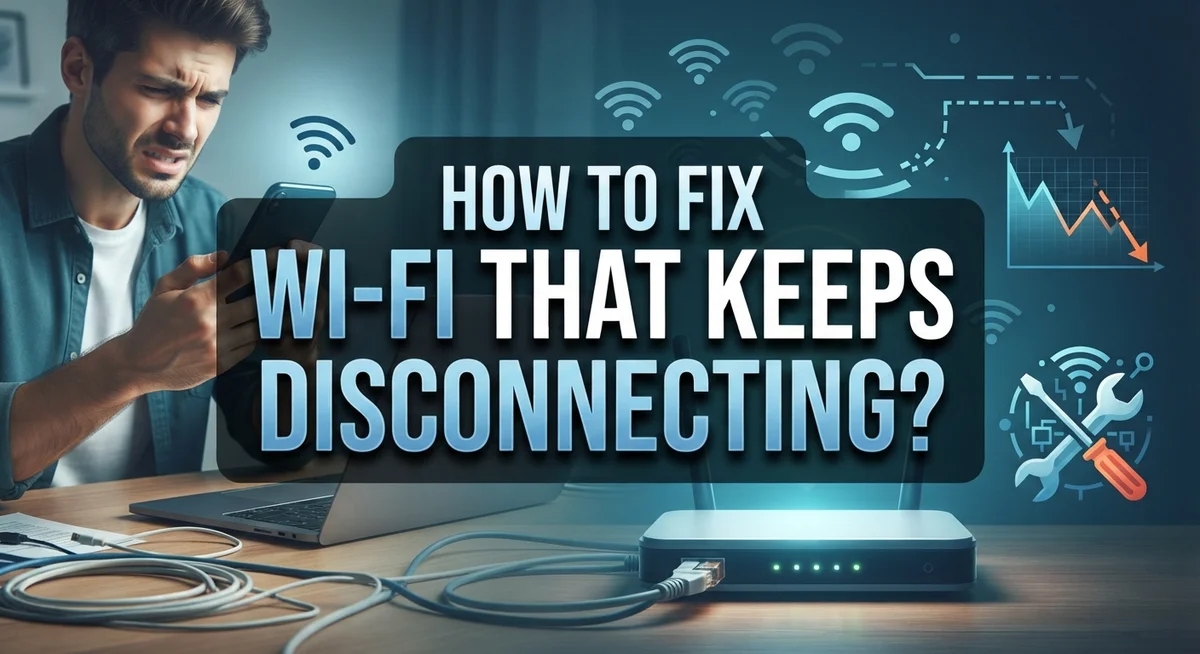
How to Fix Wi-Fi That Keeps Disconnecting?
Does your Wi-Fi drop out right when you need it most? You are not alone.
Many people face random disconnections during video calls, gaming sessions, or movie nights. It feels frustrating when the internet cuts off without warning.
Wi-Fi disconnection happens for many reasons. A weak signal, network congestion, or an unsecured network can all cause trouble. Sometimes the problem sits with your modem or router. Other times, outdated Wi-Fi adapter drivers create the issue.
You might notice your connection drops after eight or ten minutes of use. Or maybe it takes five minutes or longer to reconnect. Some users see quick dropouts that fix themselves in seconds.
This article will walk you through the most common causes behind these frustrating disconnections. You will learn simple fixes like rebooting your router and computer. We will also cover firmware updates, driver updates, and router placement tips.
By the end, you will understand why your Wi-Fi acts up and how to stop it. Let’s get your connection back to stable and reliable.
In a Nutshell
Here is a quick summary of what causes Wi-Fi trouble and how to fix it fast.
-
Weak signals and poor router placement often cause random drops. Keep your router in an open space, away from walls and thick objects.
-
Outdated firmware can make your connection unstable. Check your router settings and update it often.
-
Old Wi-Fi drivers on your computer also lead to disconnects. Update them through your device manager regularly.
-
Network congestion happens when too many devices share one connection. This can cause slow speeds and sudden dropouts.
-
A simple reboot of your router and computer can solve many issues right away. This clears temporary glitches in the system.
-
Unsecured networks invite outside interference. Always use a strong password to protect your connection.
Small fixes like these often solve big problems. Try them one at a time to see what works best for your setup. Most Wi-Fi issues are easy to fix once you know where to look.
Why Does Wi-Fi Keep Disconnecting? Common Causes Explained
Your Wi-Fi keeps disconnecting because several technical issues work against your connection. Understanding these causes helps you fix the problem faster.
Weak signal strength is the top reason your connection drops. When you sit far from your router, the signal weakens. Walls, metal objects, and appliances block the radio waves that carry your internet. Your device struggles to stay connected when the signal is too faint.
Router and modem problems cause unexpected disconnections. Your router may overheat after running for hours without a break. Old firmware versions contain bugs that create instability. A modem that is failing will drop your connection repeatedly.
Network congestion happens when too many devices use the same connection. Streaming video, downloading files, and online gaming all compete for bandwidth. Your router cannot handle the traffic load, so it disconnects some devices to manage the strain.
Outdated Wi-Fi drivers on your computer prevent proper communication with the router. Your device cannot understand the latest router signals if the driver is old. This mismatch causes random disconnections that seem to happen without reason.
Unsecured networks let unauthorized devices connect and drain your bandwidth. Neighbors or passersby can join your network without permission. Their activity interferes with your connection and causes drops.
Interference from other devices disrupts your Wi-Fi signal. Microwaves, cordless phones, and baby monitors use the same frequency as Wi-Fi. They broadcast signals that jam your connection.
Automatic disconnection settings on your router may disconnect idle devices. Your router might cut off devices that stop sending data for a few minutes. This feature saves power but creates frustrating reconnection delays.
Each cause has a specific fix. Identifying which issue affects you makes solving the problem straightforward.
Understanding Different Disconnection Patterns
Your Wi-Fi disconnection patterns tell you a lot about what is wrong. Understanding these patterns helps you find the real problem faster.
Disconnections after specific time periods are very common. Many people notice their connection drops after eight to ten minutes of activity. This pattern usually points to idle timeout settings on your router. Your router may automatically disconnect devices it thinks are not in use. Check your router settings to see if this feature is enabled.
Random disconnections requiring manual reconnection suggest a different issue. When you must manually rejoin your network each time, your device loses trust in the connection. This happens with outdated drivers or unstable signal strength. Your computer or phone stops recognizing the network as reliable.
Temporary dropouts with automatic recovery are shorter but still annoying. Your connection drops for a few seconds, then comes back on its own. These brief interruptions often mean weak signal strength or minor interference from nearby devices. They can also indicate network congestion during peak usage times.
Reconnection delays lasting five minutes or longer point to modem or router problems. When your device cannot quickly reconnect to the network, the hardware itself may be struggling. This pattern suggests you need to restart your modem and router.
Disconnections that happen only on certain devices mean the issue is with that specific device, not your network. One laptop may drop while your phone stays connected. This indicates outdated Wi-Fi drivers or hardware problems on that device alone.
Pay attention to when and how your disconnections happen. The pattern reveals whether the problem is your router, your device, your signal strength, or your network settings. This knowledge guides your next troubleshooting steps.
Step-by-Step: Basic Fixes to Try First
Start with the simplest fix first: restart your router and modem. Unplug both devices from power. Wait 30 seconds, then plug them back in. This clears temporary glitches that cause most disconnections.
Next, move closer to your router to test signal strength. If your connection stays stable nearby but drops when you move away, weak signal is your problem. Router placement matters greatly. Keep it in a central location, away from walls and metal objects.
Update your Wi-Fi adapter driver on your computer or phone. Outdated drivers prevent proper communication with your router. Visit your device manufacturer’s website to download the latest version. This single step fixes many stubborn disconnection issues.
Check your router firmware version. Log into your router settings through a web browser. Look for a firmware update option. Install any available updates. Firmware patches fix bugs that cause random drops and reconnection delays.
Restart your computer or device after making these changes. A fresh start helps your system recognize the updated drivers and settings.
Test your connection for at least 15 minutes. Watch for any drops or delays. If problems persist, write down exactly when disconnections happen. Note which devices are affected. This information helps you identify whether the issue is network wide or limited to one device.
Reduce network congestion by disconnecting devices you are not using. Too many active connections drain bandwidth and cause instability. Disconnect phones, tablets, and computers that are not needed.
These basic fixes resolve most Wi-Fi disconnection problems. They take less than 20 minutes total. If your connection remains unstable after trying all these steps, the issue likely involves your modem, router hardware, or your internet service provider.
Optimizing Router Placement and Settings
Your router’s physical location has a major impact on connection stability. Place your router in a central, elevated position within your home or office. Avoid hiding it in closets, cabinets, or behind furniture. These barriers block the signal and create dead zones where your Wi-Fi weakens significantly.
Distance matters too. The farther you are from your router, the weaker your signal becomes. If you experience disconnections in certain rooms, try moving your router closer to where you spend the most time. Even moving it a few feet can improve stability dramatically.
Keep your router away from obstacles and interference sources. Metal objects, water containers, and dense walls weaken signals. Microwaves, cordless phones, and baby monitors also interfere with Wi-Fi on the 2.4 GHz band. Position your router away from these devices to reduce signal disruption.
Check your router’s antenna orientation. Many routers work best when one antenna points vertically and another horizontally. This positioning helps signal reach different areas of your space more effectively.
Access your router settings through the admin panel to optimize performance. Look for channel settings and switch to a less crowded channel if many networks operate nearby. On 2.4 GHz, channels 1, 6, and 11 rarely overlap with neighbors’ networks.
Adjust your transmit power settings if available. Higher power settings extend your range and improve stability. Enable the 5 GHz band if your devices support it, as this band has more available channels and less interference.
Reduce the number of connected devices when possible. Too many devices drain bandwidth and cause disconnections. Disconnect devices you are not actively using to free up network resources.
Updating Firmware and Wi-Fi Adapter Drivers
Your Wi-Fi adapter driver is software that helps your device talk to your wireless network. When this driver gets outdated, your connection becomes unstable and drops frequently. Updating it often solves disconnection problems fast.
Finding your current driver version is the first step. On Windows, right click the Start menu and open Device Manager. Look for “Network adapters” and expand that section. You will see your Wi-Fi adapter listed there. Right click it and select “Properties” to check the driver date and version number.
For Mac users, click the Apple menu and go to “About This Mac.” Select “System Report” and then “Network.” Find your Wi-Fi adapter and note the driver information displayed there.
Updating your driver requires visiting your device manufacturer’s website. Search for your specific computer model and Wi-Fi adapter. Download the latest driver available. Run the installer and follow the on screen instructions. Your computer will likely need a restart after installation completes.
Router firmware is different from your adapter driver. Firmware is the software that runs inside your router itself. Outdated firmware can cause your router to drop connections randomly. Access your router’s admin panel by typing your router’s IP address into a web browser. Look for a “Firmware” or “Software Update” section. Check if updates are available and install them if found.
After updating both your driver and firmware, restart your computer and router completely. Wait five minutes before reconnecting to Wi-Fi. Test your connection for several hours to see if disconnections stop happening. Many users find that these two updates alone fix their Wi-Fi stability issues completely.
Advanced Troubleshooting for Persistent Connection Drops
When basic fixes don’t work, you need to dig deeper into what’s causing your disconnections. Advanced troubleshooting focuses on the hardware and software layers that control your connection quality.
Start by checking your router’s logs. Most routers store error messages and connection events. Log into your router’s admin panel and look for patterns. You might see repeated errors at specific times. These patterns reveal whether your issue is environmental, hardware related, or caused by interference.
Next, test your Wi-Fi on different channels. Your router broadcasts on specific frequency channels. Neighboring networks can cause interference on the same channel. Switch to a less crowded channel through your router settings. Use Wi-Fi scanning tools to see which channels your neighbors use. Avoid those channels.
Check your router’s security settings carefully. An unsecured network allows unauthorized devices to connect. These devices consume bandwidth and destabilize your connection. Verify your network uses strong encryption like WPA3 or WPA2. Change your password to something complex.
Monitor your router’s temperature. Routers overheat when placed in enclosed spaces or near heat sources. Overheating causes automatic shutdowns and disconnections. Ensure your router has proper ventilation around all sides.
Run a factory reset on your router as a last resort. This erases all settings and returns everything to defaults. Write down your current settings before resetting. After the reset, reconfigure your network from scratch. This eliminates corrupted settings that might cause persistent drops.
If disconnections continue after these steps, your modem or router hardware may be failing. Contact your internet service provider for modem diagnostics. They can run remote tests to confirm hardware problems.
Common Mistakes That Make Wi-Fi Problems Worse
Many people accidentally make their Wi-Fi problems worse by ignoring simple mistakes. Understanding these errors helps you fix disconnections faster.
Poor router placement is the biggest culprit. Putting your router in a closet, cabinet, or corner blocks the signal. Your router needs open space with clear paths to your devices. Placing it high up on a shelf works better than keeping it on the floor.
Skipping firmware updates causes serious stability issues. Your router’s firmware is the operating system that controls how it works. Outdated firmware contains bugs that lead to random disconnections. Many people forget to check for updates regularly. This leaves their routers running old, unstable software.
Ignoring outdated Wi-Fi adapter drivers creates connection problems on your device. The driver is software that lets your computer or phone communicate with the network. When drivers get old, they don’t work well with modern routers. You must update them to stay connected.
Not restarting your modem and router is another common mistake. People often restart just their computer or phone. The modem and router need to reboot too. A simple restart clears memory issues and resets connections. Do this before trying anything else.
Connecting too many devices at once strains your network. Each device uses bandwidth and creates interference. Disconnecting phones, tablets, and smart home devices you’re not actively using improves stability.
Leaving your network unsecured allows unauthorized users to drain your bandwidth. This causes your connection to drop. Check your security settings to ensure only your devices connect.
These mistakes are easy to fix once you know about them. Address each one and your Wi-Fi should stay connected longer.
When to Contact Your ISP or a Professional
Your Wi-Fi keeps dropping, and you’ve tried the basic fixes. Now it’s time to decide if you need outside help. Here’s how to know when to call your internet service provider or a professional technician.
Contact your ISP when hardware is failing. If your modem shows error lights, makes unusual noises, or feels hot to the touch, the device itself may be broken. Your ISP owns the modem in most cases, so they’ll replace it for free. Call them first before spending money on repairs.
You should also reach out to your ISP if disconnections happen only when using their equipment. They can run line tests from their office to check if your connection is stable. Weak signals from your provider’s end require their intervention, not yours.
Call a professional technician if you suspect router hardware failure. After you’ve updated firmware and drivers, restarted everything, and checked placement, a broken router is likely the problem. A technician can diagnose hardware issues that you can’t see.
Contact support if your router is still under warranty. Most manufacturers offer free help during the warranty period. They can guide you through advanced troubleshooting or send a replacement.
Know when to stop troubleshooting yourself. If you’ve spent more than two hours on fixes and nothing works, professional help saves time and frustration. Don’t waste energy on endless restarts and resets.
Document your problem before calling. Write down when disconnections happen, how long they last, and what devices are affected. This information helps technicians pinpoint the issue faster. You’ll get your stable connection back sooner with clear details to share.
Final Thoughts
Wi Fi disconnections feel frustrating, but most problems have simple solutions. You now know the core causes behind unstable connections.
Weak signals, congestion, and outdated drivers create most disconnection issues. Router placement and firmware updates matter more than people realize.
Start with the basics every time. Reboot your router and computer first. These simple steps solve many connection problems quickly.
Check your driver and firmware versions next. Outdated software causes more disconnections than most people expect.
If basic fixes don’t work, move to advanced troubleshooting. Check router logs, test different channels, and review your security settings.
Temperature matters too. An overheating router struggles to maintain stable connections. Give your equipment proper ventilation and space.
Remember the common mistakes that make things worse. Poor placement, skipped updates, and unsecured networks all create ongoing problems.
Fixing these mistakes often solves your disconnection issues without needing professional help.
Sometimes the problem goes beyond software fixes. Hardware failure requires different solutions entirely.
Watch for warning signs like error lights, unusual noises, or overheating equipment. These signals mean it’s time to contact your ISP or a technician.
Don’t spend endless hours troubleshooting alone. If you’ve tried everything and nothing works, professional help saves you time and stress.
Your Wi Fi connection should work reliably every day. Small adjustments often fix big problems.
Stay proactive about maintenance. Regular restarts, updated drivers, and good router placement prevent future disconnections.
Trust the process outlined here. Work through each step methodically, and you’ll likely find your solution.
Reliable Wi Fi makes daily tasks easier. Take action today, and enjoy a more stable connection tomorrow.
Frequently Asked Questions
Why does my Wi-Fi disconnect after a specific amount of time?
Your router may have an idle timeout setting. This feature automatically disconnects devices after they sit unused for 8 to 10 minutes. Check your router’s admin settings to adjust this timer. You can also disable the timeout completely if you prefer always-on connectivity.
Network congestion causes this too. When too many devices use your network simultaneously, your router may drop connections to manage the load. Try reducing active devices and see if disconnections stop happening.
What should I do if my Wi-Fi takes 5+ minutes to reconnect?
A slow reconnection usually points to driver issues. Your Wi-Fi adapter driver may be outdated or corrupted. Update your adapter driver through your device’s settings or the manufacturer’s website.
Restart your modem and router completely. Power them off for 30 seconds, then turn them back on. This clears temporary glitches that slow down reconnection speeds. If reconnection still drags, your router firmware may need an update.
Can a weak Wi-Fi signal cause random disconnections?
Yes. A weak signal makes your device work harder to stay connected. When signal strength drops too low, your device loses the connection entirely. Move your router to a central location in your home, away from walls and metal objects.
Check your distance from the router. If you’re too far away, move closer temporarily to test stability. A weak signal often shows as random dropouts that suddenly fix themselves.
Why does my Wi-Fi drop for just a few seconds?
Brief dropouts usually mean temporary interference. Microwaves, cordless phones, and baby monitors operate on the same frequency as your router. Move these devices away from your router.
Your router may also need a firmware update. These short interruptions often disappear after you update to the latest firmware version.

Dillip is the founder and editor of ZoomNScale.com, where he breaks down the latest tech products, accessories, and gadgets into honest reviews and easy-to-follow buying guides. When he’s not testing the newest tech, he’s comparing specs and hunting for the best deals so his readers don’t have to.